Connections
What your assistant can reach, and whether each one is still working.
What your assistant can reach.
Every outside service your mineral is connected to, and whether it is working, in plain words. Read from your mineral when you open the page, so it is the current answer rather than a remembered one.
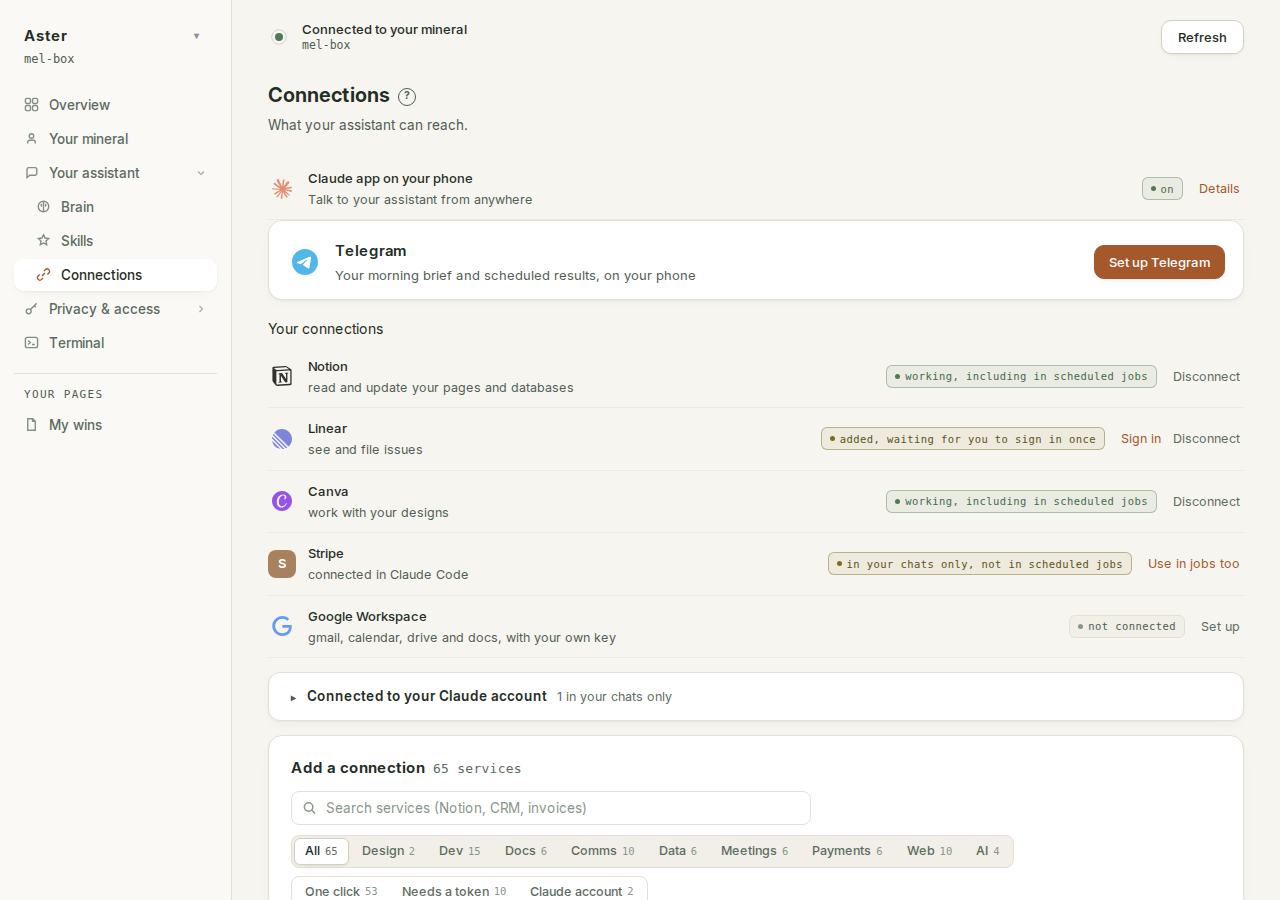
The Claude app on your phone, first#
The top row is Claude app on your phone: your assistant from the Claude app's Code tab, on by default. Its chip says where it stands: "on", "starting", "restarting" (your mineral brings it back within about two minutes), "off", "sign in to Claude" (your mineral's own Claude sign-in has lapsed) or "needs a look" (it could not start, and Details says why). Details opens how to find it on your phone, what Anthropic keeps while a session is connected, and the one control: Switch off, or Switch on once it is off. The walkthrough is use it from your phone.
Then Telegram#
Telegram is where scheduled results reach your phone. Until it is linked, it sits under the phone row as its own card with one button, "Set up Telegram". Once linked, the same card docks as the first row of the connections list below. The chip on it tells you where you are: "not connected", then "one step left" once your bot token is saved, then "linked". The button changes with it: "Set up Telegram", then "Finish setup", then "Details", which opens the card that holds the Disconnect.
Setup is two short steps. Step 1 is making your own bot with @BotFather and pasting the token it gives you; the token is stored on your mineral only, and the page never shows it again. Step 2 is sending that bot a code.
The code matters. It is six digits, minted by your mineral, shown only on this screen, and it expires after ten minutes. The page checks Telegram every few seconds and finishes the link the moment your bot receives that exact code from a private chat. A used code is spent and cannot be answered twice. The page says why in its own words: "The code is what proves the bot is being linked by you. Anyone can find a bot by its name and message it, so without it the first stranger to say hello would be the one your mineral answers to."
When the link lands, the bot's first message states the contract: "Connected. Message me any time. When something needs sending, I write the draft and you send it. I never send anything on my own." A draft comes to you in the chat and you send it yourself; nothing goes out on its own. And there is no middleman, which is the reason you make your own bot rather than using a shared one: "Your mineral talks to Telegram directly. Nothing you send passes through Crads-AI." The walkthrough with screenshots is connect Telegram.
What each row says#
Every row carries a status in plain words. The full vocabulary:
| The row says | What it means | What to do |
|---|---|---|
| "working, including in scheduled jobs" | Connected and authorised on your mineral. API-token connections read this from the moment they are saved. | Nothing. |
| "added, waiting for you to sign in once" | The connection is on your mineral but you have not authorised it yet. | Press Sign in. |
| "sign-in expired, needs you once more" | The authorisation lapsed and could not be renewed. | Press Sign in again. |
| "not connected" | An offer, nothing more. Nothing of yours is involved yet. | Connect it, or ignore it. |
| "in your chats only, not in scheduled jobs" | Connected inside Claude Code, where jobs cannot load it. | Press "Use in jobs too" if a job should have it. |
| "sign-in can never finish on this endpoint, disconnect it" | A dead end from an early version of the catalogue, still sitting on your mineral. | Disconnect it. The Google row below is the working replacement. |
Your Claude account is not your mineral#
The same service can be connected in three different places, and this page is honest about which is which.
Connected to your mineral (the main list): works in chats and in your scheduled jobs, and the credential lives on your mineral.
Connected in Claude Code on your mineral: works when you chat, invisible to jobs. These rows say so, and carry one button, "Use in jobs too", which moves the connection to where jobs load it. Your sign-in survives the move, because the credential is keyed by the server's name and address and both are preserved; the old copy is removed rather than duplicated, so there is one definition, not two that can drift.
Connected to your Claude account (in the app's own settings): those connectors live on Anthropic's servers, not on your mineral. They fold away under "Connected to your Claude account", with the one explanation that matters: "These are connected to your Claude account, not to your mineral. They work when you chat, but your scheduled jobs cannot see them. To use one in jobs, connect it here instead." Rows in that fold have no Disconnect, because there is nothing on the mineral to disconnect, and no "Use in jobs too", because account connectors can never run in scheduled jobs: the mineral holds nothing to move. If a service in the catalogue is connected only on your account, its row says so: "in your chats via your Claude account, not in scheduled jobs. Connect it here for jobs".
Adding one#
The catalogue is listed, with a sign-in column, in what you can connect. The featured services connect natively: press Connect, approve in your browser, done.
Everything else in the directory is probed live when you press Connect, and the button you get is the honest one for what the probe found. If the service can complete a sign-in, one starts. If it cannot, the "Connect something else" form is pre-filled and the page tells you what is missing: the service "needs an API token rather than a sign-in", so you paste one from your own account there and press Connect. And if the service did not respond, the page says that too: it "did not answer when we checked, so we could not tell how it signs in", and leaves the by-URL form as the way to try anyway.
Google is the exception, and it is the exception on purpose. Reading your mail means either a company sits in the middle of it, or you make your own key. Crads AI chose the second, which costs you ten minutes once and means your Google key never touches our infrastructure.
Some services are guided. Their cards carry a Guided tag and the button says Set up instead of Connect. Pressing it opens a step-by-step card, the same shape as Google's: each step has a button that opens the exact page you need, and a Done box that moves you on. At the end your mineral saves what you pasted, then asks the service to answer, from your mineral, the way your scheduled jobs will. If the service answers, the card says how many tools it found. If it does not, the card says why in plain words and keeps nothing, so you can fix it and try again. Three services work this way today:
- Slack, with a private Slack app you make from our template: connect Slack.
- WordPress, including WooCommerce, signed in as a user you make for your assistant with an application password: connect WordPress.
- Mailchimp, with an API key you make in your own account. Its connection runs on your mineral itself, and it drafts campaigns but never sends them: connect Mailchimp.
Two are listed but cannot live on your mineral. Shopify and Xero only let Claude's own connector sign in at the moment. Their cards say Chats only, the button says How to, and it opens the steps for connecting them to your Claude account, with the limit stated plainly: they work in your chats, never in scheduled jobs. The Claude account filter shows just these. Shopify and Xero, through your Claude account has the detail.
More than one account. Once a Google account is working, the list offers Add another Google account: a work address, a client's, another Gmail, each with its own row and its own key. Slack works the same way once one workspace is connected: Add another Slack workspace opens the Slack card again with one extra field, a short name for the workspace (lowercase letters, numbers and dashes), which becomes its row, "Slack (reef)" for example, so your assistant can tell your workspaces apart. Each workspace gets its own app and its own token.
Connect something else, by URL#
Anything not in the catalogue can be added from this page: "Anything with an MCP server can be connected. Give it a short name and its address; if the service gave you an API token, add that too, otherwise you will be asked to sign in after connecting." With a token, the connection carries its own credential and is working immediately. Without one, the sign-in starts as soon as the connection is saved. Only https addresses are accepted, and one endpoint gets one entry: if the same address is already connected under another name, the page refuses the duplicate and names the existing one.
Some services want the token in a header of their own rather than the usual one. Open The service says to send the token in a different header under the form and type the header name the service gives. The token then goes in that header exactly as you pasted it, with nothing added in front. WooCommerce's own MCP server is the common case: its address is https://<your shop>/wp-json/woocommerce/mcp, the header is X-MCP-API-Key, and the token is a WooCommerce REST API key's consumer key and consumer secret joined by a colon (ck_...:cs_...). A read-only key keeps the assistant to reading orders and products.
What keeps sign-ins alive#
Signing in once is the promise, so a scheduled job on your mineral renews sign-ins unattended: any token within about 30 minutes of expiring is refreshed on the mineral itself. A refresh that fails is reported rather than retried into a rate limit, and the connection keeps working until the token actually expires, so you are only asked when you are truly needed.
A few providers grant no renewal at all. Those rows say so up front: "Signs you out periodically; you will need to authorise it again when it does."
The Google row gets its own watch, because your Google key is yours and no clock can know when Google might drop it. Your mineral asks Google directly, about every six hours, whether the key still works. A network blip or a server error is never treated as death; only a definitive answer from Google counts. When that happens you get exactly one Telegram message saying your scheduled jobs cannot reach Gmail or Calendar until you sign in again, and the fix is two clicks on this page: Google, then Sign in. No new key, no file to drop again. The details live in connect Google and fix a connection that has stopped working.
What disconnecting destroys#
Disconnect has one meaning, for every connector: the credential is destroyed on this mineral. That is the connection entry itself, any API token inside it, the renewal material, and the stored sign-in, all of it. For Google it includes your key file. The confirmation says exactly where the boundary sits: the service "is disconnected and its credential is gone from this box. The permission you granted at" the service "is yours to revoke there." Your mineral cannot reach into another company's account settings, so that last step is yours.
One carve-out: a server you added by hand in Claude Code is shown here honestly, but gets no Disconnect. This page did not put it there, so it does not take it away; remove it where you added it.
When one stops working#
It happens, and almost never because of something you did. A sign-in reaches the end of its life, or a service changes a rule.
The row says which, in plain words, and asks you to sign in again if that is the fix. It does not retry forever and it does not ping you hourly: one clear statement, in the place you would look. The walkthrough is fix a connection that has stopped working.
When the page cannot answer#
Two states look similar and are kept strictly apart. A mineral running older software than this page expects is told so, kindly and with the fix: it needs a newer version of your mineral. Open Help and press Update and restart, then come back. It takes about a minute, and everything of yours stays exactly as it is.
A mineral that simply did not respond gets a different sentence, because silence is not emptiness: "Your mineral did not answer, so this list is unknown rather than empty. Nothing has changed." No row is repainted, no connection is presumed dead, and the catalogue below still renders, with Connect refusing honestly until the mineral answers.
Why this page matters more than it looks#
Your scheduled jobs read through these connections while you are asleep. A job that needed a dead connection fails rather than pretending: it does not send a half-empty brief and does not quietly skip the part it could not read.
So when a morning brief does not arrive, this page is the first place to look, before concluding your assistant has stopped working.