Back up your mineral, and get it back
What is already backed up, the one thing you have to do yourself, and why the passphrase matters more than the backup.
You will be able to know what is already backed up, do the one step only you can, and get everything back.
Two different things get backed up, by two different mechanisms, and the second one has a step only you can do.
Your brain backs itself up#
Your brain is a folder of ordinary files, kept under git (the same change-tracking system programmers use, working quietly underneath; you never have to touch it). Connect GitHub and it pushes to a private repository in your own account, on its own, from then on.
That is the important half. It means the pages your assistant has written about your world exist somewhere that is not this machine and is not ours, in a format you can read in any text editor, on infrastructure we cannot reach.
If you do nothing else on this page, connect GitHub. The create wizard offers this exact step on its finish checklist, the moment your mineral first comes alive, so you may well have done it on day one; the chip there says so honestly either way. Later, and for any mineral made before the checklist existed, the same flow lives on the Backup card, near the top of Your mineral:
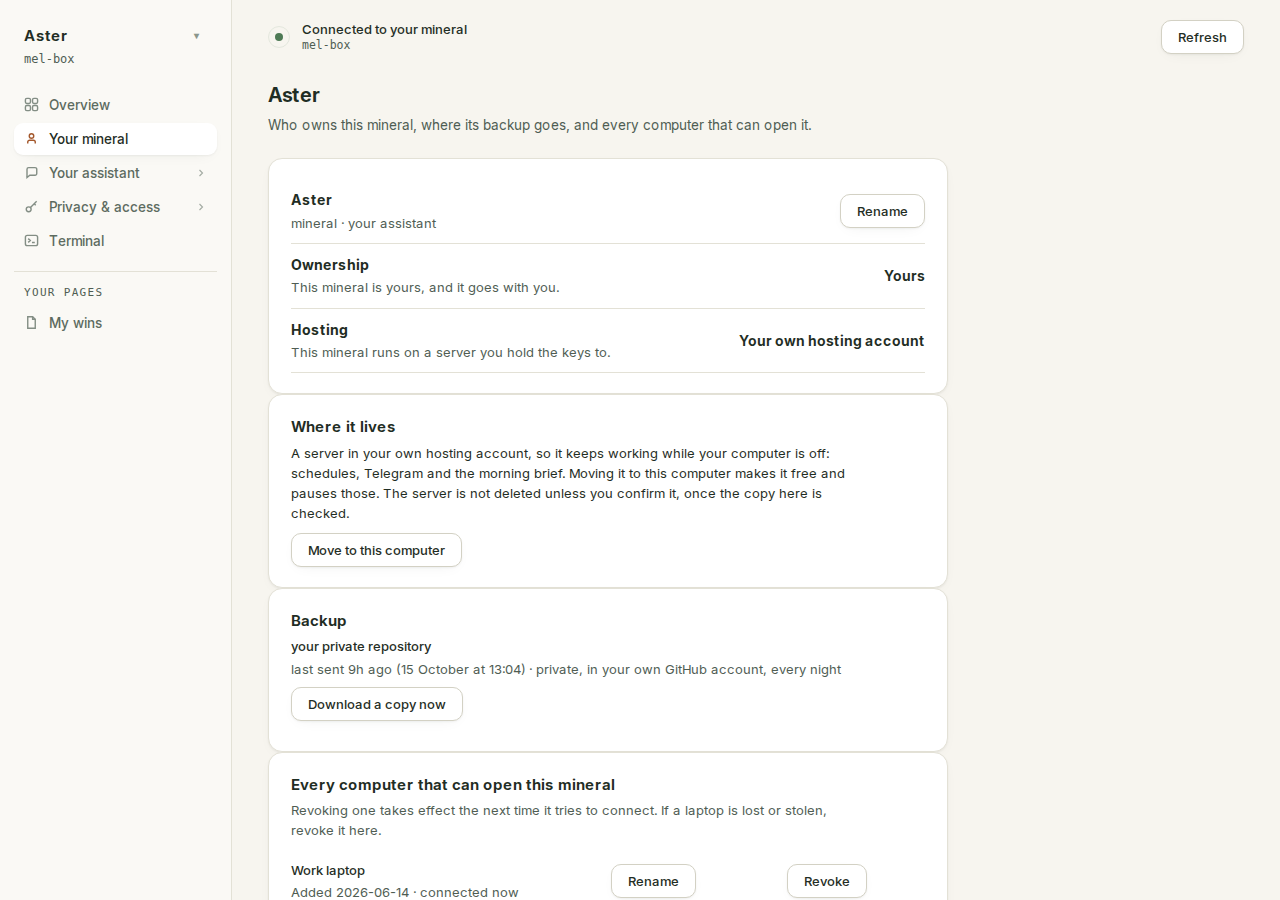
Here is the whole of it:
- If you do not have a GitHub account, make one at github.com first. The free kind is fine; it is a place to keep private copies of files.
- In the app, open Your mineral. The Backup card says where you stand. If nothing is connected yet it reads "Your brain lives on this mineral and nowhere else", which is the app being honest with you.
- Press Connect my GitHub. A code appears; approve it on the github.com page that opens. Nothing to install, nothing to type beyond the sign-in.
- Wait for the card to say Done. Your brain now lives at github.com/..., private and yours. From then on it stays current on its own, every night.
If the flow stops partway, it is safe to press again. The card names the leg that failed and keeps the steps that did work, and says so in its own words: "Nothing was lost: every step is safe to run again, so pressing Connect my GitHub picks up where this stopped."
Once connected, the card is one line of truth: the repository's name, the date your brain was last sent, and whose account it sits in: "private, in your own GitHub account, every night".
The card also offers Download a copy now at any time. That downloads your mineral's whole working state to the computer you are sitting at, minus credentials and history: keys, secrets and sign-ins are excluded from the archive, and the encrypted settings snapshot from the section below rides along inside it. Connected or not, that button is always yours.
Everything else backs up encrypted#
Some things cannot live in a git repository: your Claude sign-in, your service tokens, your bot token, your scheduled jobs, your connection settings. Those are deliberately excluded from your brain repo, because a repository that carried your credentials would be a repository you could not safely share or clone.
So once a night your mineral tars them up, encrypts them on your machine with a passphrase generated on your machine, and pushes the encrypted blob to the same repository. Of that snapshot, the repository only ever sees ciphertext; your brain pages ride the same repository as readable files you own. We never hold the passphrase.
In your terms, the encrypted snapshot holds: your Claude sign-in, your Telegram link, your other stored secrets, your GitHub sign-in, your schedule, your connection settings, and your profile. In other words, everything that makes a fresh machine yours again.
It runs nightly at 03:40 mineral time, deliberately just before the 03:50 brain push and the software restart a little after 04:10: the snapshot is written, ten minutes later it leaves the box with the brain push, and only then does the machine restart.
And every night's snapshot is proven before it counts: the fresh blob is decrypted and unpacked in a drill, every file that went in is checked to come back out, and only then does it replace last night's copy. A failed run can never destroy the previous good snapshot, because the previous one is not touched until the new one has passed.
Without GitHub connected, the snapshot dies with the machine. The nightly blob is still written, but it stays local-only, on the very machine it exists to survive. Connecting GitHub is what puts both halves offsite at once: the readable brain and the encrypted snapshot travel in the same repository.
The step only you can do#
Here is the catch, and it is a real one rather than a formality.
The passphrase is generated on your mineral on the first backup run, and printed once, on that run. Its only other copy is inside the backup it encrypts.
Which means: if your machine dies and the passphrase lived only on that machine, you have an encrypted blob that nobody, including us, can open. That is not a backup. It is a souvenir.
So take the passphrase off the box, once, into wherever you keep things like that: a password manager, or a piece of paper somewhere safe. The passphrase lives in your mineral's own secrets, which your assistant can read for you, so the way to do it is to ask, in the Terminal, in plain words:
Show me my backup passphrase so I can store it somewhere safe,
then record that I have.
Your mineral tracks whether this has happened. The record is a file the Secrets page lists as Backup passphrase, escrow marker, and until it exists the nightly record refuses to call the snapshot recoverable. That is not nagging, it is the honest state.
The distinction it is holding onto is worth stating: offsite is not the same as recoverable. The nightly record tracks both, separately. Offsite means the encrypted copy left the box. Recoverable means somebody can actually decrypt it, which needs the passphrase recorded off the box too. Until you do the step above, the record carries its own warning, verbatim: "the backup passphrase has not been recorded off this box, so this snapshot cannot be decrypted once the VM is gone".
Getting it back#
If your mineral's server dies, you build a new mineral and pour the old one back into it. There is no button for this in the app: it is a short procedure with one command, and it takes three things from you: your GitHub account, your backup passphrase, and the name of your old brain repository (you can see it on github.com; it ends in -brain).
Before you start: this procedure was rehearsed on real servers in October 2026, from a mineral that was switched off to a brand-new one, and everything on the list below came back. If anything below does not match what you see, stop and ask for help rather than improvising. Nothing in these steps changes your old repository: it is only ever read.
- Make a new mineral with a new name. In the app, under your minerals, choose Set up my own and build it exactly as you did the first time. Give it a name your old mineral never had. (A reused name points the app back at the dead server, and points your new mineral at the very backup you are about to restore from.) You can rename the assistant afterwards.
- Connect GitHub on the new mineral, with the same GitHub account that holds your old brain. This makes a fresh repository for the new mineral, and lets the new mineral read the old one.
- Hold off on signing in to Claude. The restore brings your old sign-in back, and would overwrite a new one.
- Open a plain terminal on your computer (Terminal on a Mac, PowerShell on Windows) and type
sshfollowed by your new mineral's name and-box, for example:
`` ssh ana2-box `` You are now inside your new mineral.
- Check first. This reads your old repository, opens the encrypted snapshot with your passphrase, and changes nothing:
`` node /app/engine/restore.mjs /state --from your-github-name/old-name-brain --dry-run ` It asks for your passphrase. Nothing shows as you paste it; press Enter. If it says the passphrase does not open the snapshot, check you copied all of it. If it says it cannot find restore.mjs`, your new mineral is on older software: in the app, Help ▸ Update and restart, then try again.
- Restore. The same line without
--dry-run:
`` node /app/engine/restore.mjs /state --from your-github-name/old-name-brain ` Your pages, profile and settings come back, and your sign-ins come back from the snapshot. Your new mineral keeps its own name and its own list of computers that can open it, so you cannot lock yourself out. The restored brain is sent to your new repository straight away. If you disconnected Telegram after your last backup, add --without-telegram to the end of that line. It takes under a minute. Running it a second time is safe: if it stops partway with a message that mentions EACCES or EEXIST`, your new mineral is on older software: Help ▸ Update and restart, then run the same line again. If it stops a second time, ask for help; nothing is lost, and your old repository is untouched.
- Restart it. In the app, Help ▸ Update and restart, so everything starts on the restored settings.
- Redo what does not travel. Expect to sign in to Claude again: open the Terminal and it will ask if it needs to. On Connections, reconnect anything that does not show as connected. Only the computer you built the new mineral from can open it, so let your other computers in again.
- Check it worked. Your pages are on the Brain page; Claude answers in the Terminal; a message to your Telegram bot gets a reply. The next morning the Backup card shows a fresh nightly copy, under the same passphrase you already keep.
Once you are happy, delete the dead server in your hosting console. Keep the old repository: it is your history.
No passphrase? Then the snapshot cannot be opened, by you or anyone. Your brain still comes back: add --no-snapshot to the restore line, and redo every sign-in and connection by hand. This is why the step above, the one only you can do, matters more than the backup itself.
Moving between your computer and a server#
Your assistant can live on a server in your own hosting account, or in a folder on your own computer, and you can move it either way from the app. A move is not a restore: nothing has died, and no passphrase is needed. The app copies your brain over its own connection to the server and checks the copy before it calls the move done.
What comes with it: your pages and profile, your own skills, your connections and their sign-ins, and your stored secrets.
What never comes with it: your Claude sign-in. On a computer, Claude Code uses that computer's own Claude login, and the app never touches it. On a server, the server has its own.
From your computer to a server#
- In the app, open Your mineral. Under Where it lives, press Move to a server.
- The usual setup runs: pick a hosting company, paste its API token, pick a size, build. The name is filled in from your folder.
- Once the server is up, your brain moves onto it and is checked file by file. If you had moved to this computer from a server before, your schedule, your morning brief and Telegram come back on exactly as they were.
- Sign in to Claude on the server, once: the finish screen's Connect Claude step opens the terminal and the sign-in starts by itself.
You do not need GitHub for this. If the copy keeps getting cut off and your folder is connected to GitHub, the app sends your brain through your own repository instead, and says so.
Your folder is not deleted or changed. The app marks it as the copy this brain left behind, because changes made there from now on do not reach the server.
From a server to your computer#
- In the app, open Your mineral. Under Where it lives, press Move to this computer.
- Pick where the folder goes (the app suggests one) and press Move it to this computer. An empty folder, or one that does not exist yet; a folder with other files in it is refused.
- The app checks the copy against the server: the same commit, the same number of files, and the folder opens as your brain. Only then does it call the move done.
Scheduled jobs, the morning brief and Telegram need a server, so they are paused and kept: stored in the folder, switched off, and listed on Your mineral as "Paused: needs a server". Moving to a server again turns them back on as they were.
Connections the app signed in for you on the server are signed in again by Claude Code on your computer: open the folder in Claude Code and type /mcp. Connections made with your own API key keep working as they are. A few connections only run on a server; the app names them.
The old server keeps running, and keeps costing you and sending your morning brief, until you delete it. Once the copy on your computer has been checked, the app offers to delete it for you: paste your hosting API token, and it shows the server's name and what it costs each month. Nothing is deleted until you tick the box that names it and press Delete. If you would rather wait, press Keep it for now and delete it later in your hosting company's console. If the server was built on a different computer, the app cannot delete it for you; delete it in the console.
If a move stops partway, nothing you had is lost: your folder is untouched, the server keeps everything it had, and the move is safe to run again. Press the button again (keep the app open and the computer awake while it runs).
What is not backed up#
Anything you never told your assistant, and anything you deleted before the last run. Backups are nightly, not continuous.
If you are about to do something drastic to your brain, the safe move is to let a night pass first, or push your brain manually before you start.