Connect Telegram
Your assistant in your pocket, step by step: your own private bot, made in about two minutes, that drafts and never sends.
You will be able to have briefs and questions reach your phone through a bot that is yours alone.
Telegram is how your assistant reaches you when you are not at the app: the morning brief on your phone, and the place scheduled output lands when a recipe says deliver: true. You can message it here too, for quick questions.
To talk to your assistant from your phone, with everything it can do at your desk, use the Claude app instead: see use it from your phone. That needs no setup. Telegram is for what your assistant brings to you.
It is one of the first things your first hour suggests switching on, and it is the one people are most surprised by, because you make your own private bot rather than messaging ours. A bot here just means a contact in Telegram that a machine answers instead of a person. Yours answers to your mineral, and to nothing else.
Why your own bot#
The same reason your Google key is your own: it keeps us out of the path. Your messages travel between your phone and your mineral through a bot only you control. There is no shared Crads AI bot reading everyone's traffic, because there is no shared bot at all.
Before you start#
You need Telegram itself, on your phone or computer, signed in. If you do not use Telegram yet, install it and create an account first; that part is Telegram's, not ours.
Then, in the Crads AI app, open Your assistant, then Connections, and press Set up Telegram on the card at the top. The card opens into two steps, and it stays on screen while you hop over to Telegram:
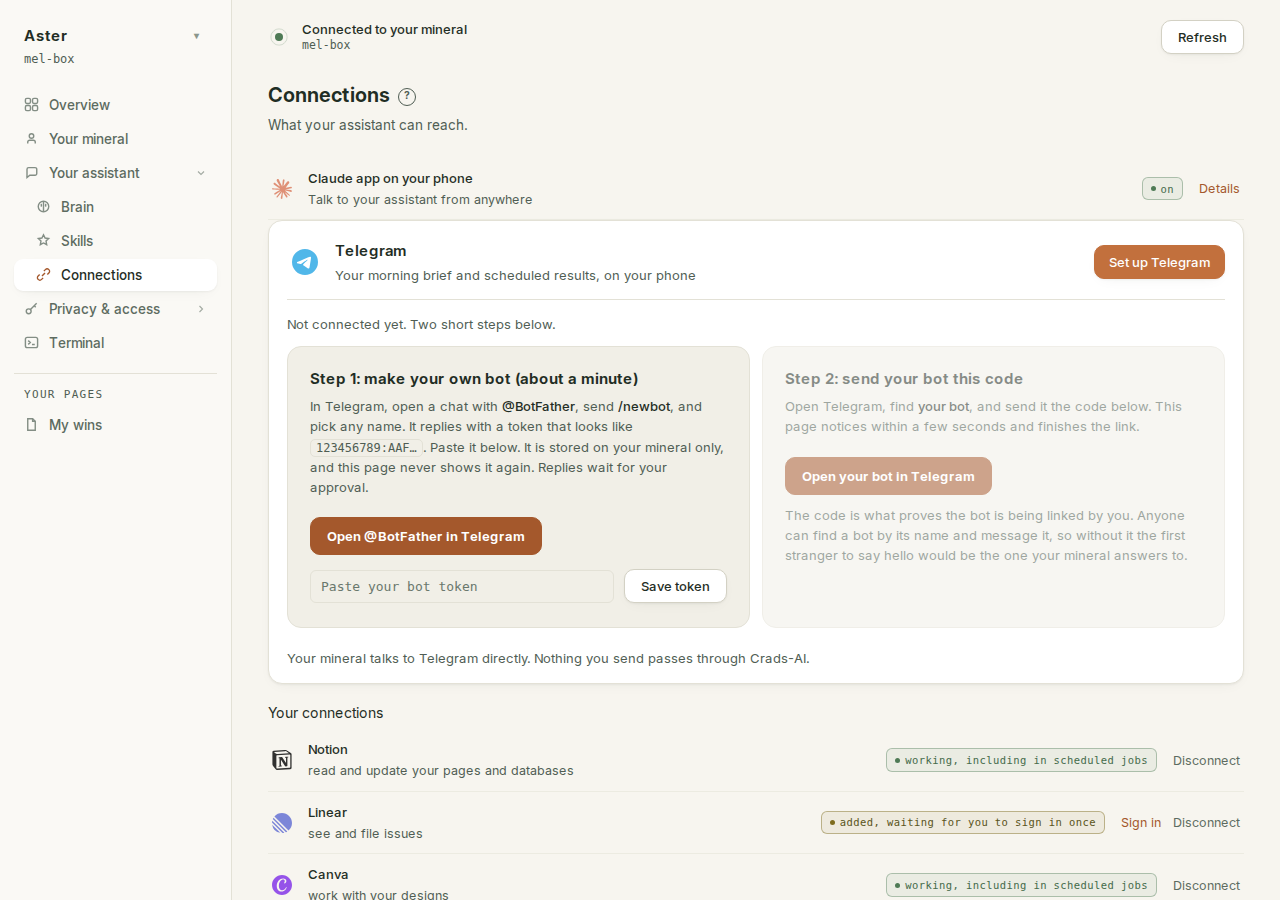
Step 1. Make your bot (about a minute)#
- Press Open @BotFather in Telegram on the card. It opens a chat with BotFather, which is Telegram's own official tool for making bots.
- In that chat, send the message
/newbot. - BotFather asks for a name. This is the name you will see in your chat list, so pick something you like. Your assistant's own name works well.
- It then asks for a username, which must be unique across all of Telegram and must end in
bot. Keep trying variations until it accepts one; nobody but you ever needs to remember it. - BotFather replies with a long token that looks like
123456789:AAF.... Copy the whole thing.
Back in the Crads AI app: paste the token into the box on the card and press Save token.
The token is handled the way a credential should be: it goes to your mineral and nowhere else, this page never shows it again, and it is never passed anywhere a bystander process could read it.
If saving the token complains#
Three refusals exist, and each names its own fix:
- "That doesn't look like a bot token. It should look like 123456789:AAF... straight from @BotFather." A paste error: part of the token is missing, or something else came along with it. Copy BotFather's token again, the whole thing and nothing else.
- "That token didn't work (rejected by Telegram). Check it with @BotFather and try again." The token is the right shape but Telegram refused it; the words in the brackets are Telegram's own reason. Usually the token was revoked or mistyped in a way that kept the shape. In BotFather,
/tokenissues a fresh one (or/mybots, pick your bot, API Token). - "Could not reach Telegram from this box." Nothing is wrong with your token: your mineral could not reach Telegram at that moment. Wait a moment and press Save token again.
Step 2. Prove the bot is yours#
The card now shows a pairing code, in large digits.
- Press Open your bot in Telegram. This opens a chat with the bot you just made.
- Press Start if Telegram offers it.
- Send the pairing code as an ordinary message.
You should see: within a few seconds, the card in the app notices and finishes the link on its own. Inside Telegram, your bot answers with a tick and its standing promise: "Connected. Message me any time. When something needs sending, I write the draft and you send it. I never send anything on my own."
The code matters. Anyone on Telegram can find a bot by its username and message it, and Telegram hands a newly connected bot up to 24 hours of message backlog, so without the code, the first stranger to say hello would be the one your mineral answers to. Sending the code is what proves the person linking the bot is you. Two small rules follow from that:
- The code is good for ten minutes. Take longer and the card simply shows a fresh one; send that instead. A code that has been used once is spent.
- The code only counts from a private chat with your bot. Adding the bot to a group and sending the code there never links it: a group is not you.
If nothing happens after sending the code: check you sent it to your own new bot (the chat BotFather made for you) and not to BotFather itself. That is the one wrong turn everyone takes once.
What the card says while you do this#
The card's chip is the short truth: "not connected" before the token, "one step left" once the token is saved but the pairing code has not been answered, "linked" when both halves are done. Its button follows along: Set up Telegram, then Finish setup, then Details. While it waits for your code it checks every few seconds, which is why the link completes on its own moments after you send the code, and linking also starts the bridge on your mineral straight away, so the very first message you send after pairing gets an answer.
Once linked, the card docks as the first row of your connections list.
What your assistant will and will not do there#
It drafts. You send. A message from Telegram reaches your brain and your skills and nothing else: that conversation has no email, no Slack and no other connected service it could send through. So when you ask for something outbound (an email, a reply, a message to another person), it writes the draft into the chat and ends with "Here's the draft. Copy it and send it yourself." There is no Approve button, because there is nothing behind one. Copy the draft into your mail or chat app and send it from there.
If your bot was linked on an older version, a few earlier drafts may still show Approve and Deny buttons. Pressing one never sent anything, and now it says so: "Nothing is sent from here. Copy the draft and send it yourself."
A skill you write or install that sends unattended is your own choice, and the acceptable use policy treats what it sends as yours.
Scheduled output lands here#
Recipes with deliver: true route their result to Telegram: the daily brief arrives where you already look rather than waiting in an app you have to remember to open. Set deliver: false on any schedule and that job's output stays in the app instead.
If a schedule has Send me the result ticked and Telegram is not connected (or you disconnect it later), nothing breaks: the run still happens on time and its output still lands in your brain as always. Only the delivery quietly does not happen, because the scheduler has nowhere to send it. Connect Telegram and the next run's result arrives on your phone; there is nothing to reset.
Support access lands here too: when a support grant opens or closes, your phone hears about it.
Where the token shows up afterwards#
The Secrets page lists two rows for this connection: the Telegram bot token (what lets your mineral talk to you on Telegram) and the Telegram chat (which conversation it replies in). Both point back to this card as the place to revoke them. Neither row ever shows a value.
Disconnecting#
Press Set up Telegram again (it reads Details once linked) and use Disconnect Telegram. That removes the link and the token from your mineral. Your bot keeps existing on Telegram's side (it is yours, made with your account); it just no longer reaches anything.
Disconnecting is also how you swap bots: disconnect, then run the two steps again with the new bot's token.